October 23, 2026
Member’s Guide to Using Timesheets



This article provides guidelines on using the Topcoder Timesheets application to log your engagement work hours accurately.
Creating Timesheets
Follow these steps to create your timesheets:
Log in to Topcoder and navigate to the Engagement Portal.
Click the My Assignments tab.
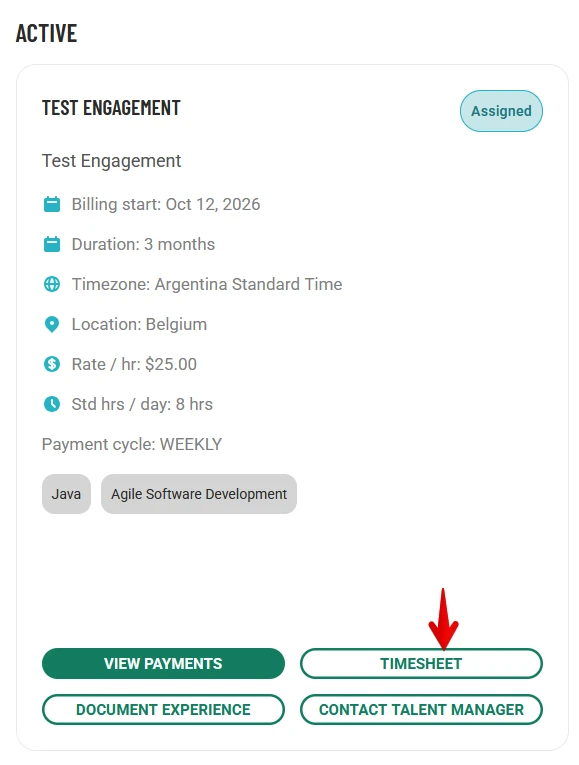
Locate your assigned engagement card
Click Timesheet button on the card to open the timesheet for your engagement.
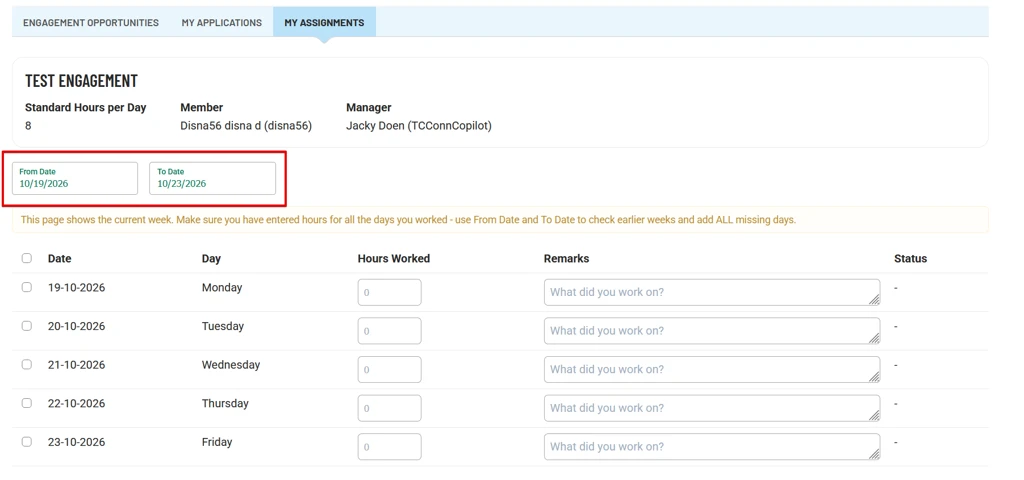
By default, this page displays the current week. You can use the From Date and To Date fields to select the period for which you want to log your work hours. Please note that the maximum date range you can select is 31 days.
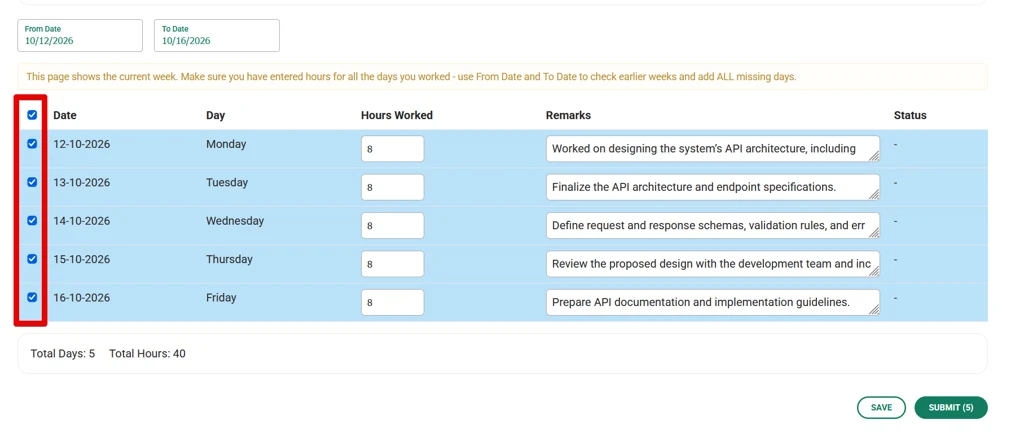
After selecting the desired date range, enter the hours and remarks for each record. Then, select the records you want to submit by checking the checkbox at the beginning of each row, or select all records at once using the checkbox at the top of the list.
Note: If you enter more hours than your standard working hours per day, the system will display a notification similar to the one shown below. This is an informational warning only, and you can still save or submit the timesheet records. However, ensure that the hours entered accurately reflect the actual hours worked. All submitted records remain subject to your manager’s approval.

Once you select the records, the Save and Submit buttons at the bottom of the page will become enabled.
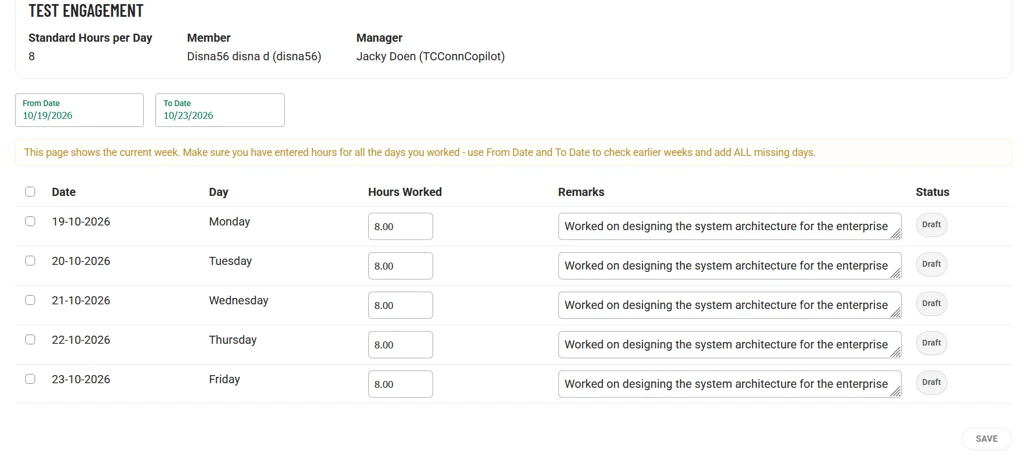
Save – Saves the selected timesheet records as drafts. These records will not be submitted for manager approval until you Submit. You can edit these records at any time and submit them for approval when you’re ready.
This is what your saved timesheets will look like.
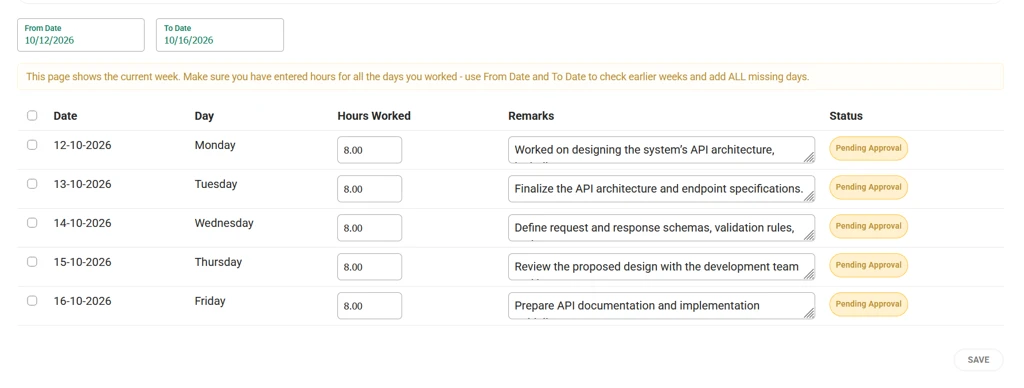
b. Submit – Submits the selected timesheet records for manager approval. Once submitted, the status of these records will change to Pending Approval**.**
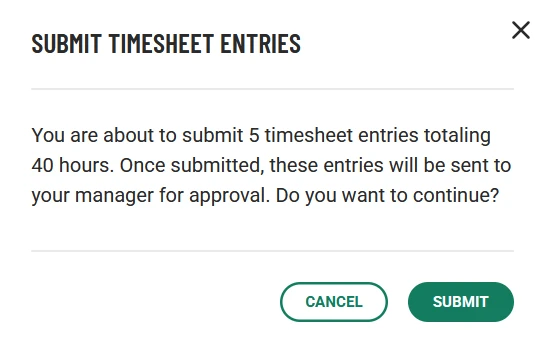
When you submit your timesheets, a confirmation message similar to the one shown below will appear. Click Submit to complete the submission.
This is what your submitted timesheets will look like.
Saving Submitted Timesheet Records
You can edit the hours and remarks of submitted timesheet records. To do so:
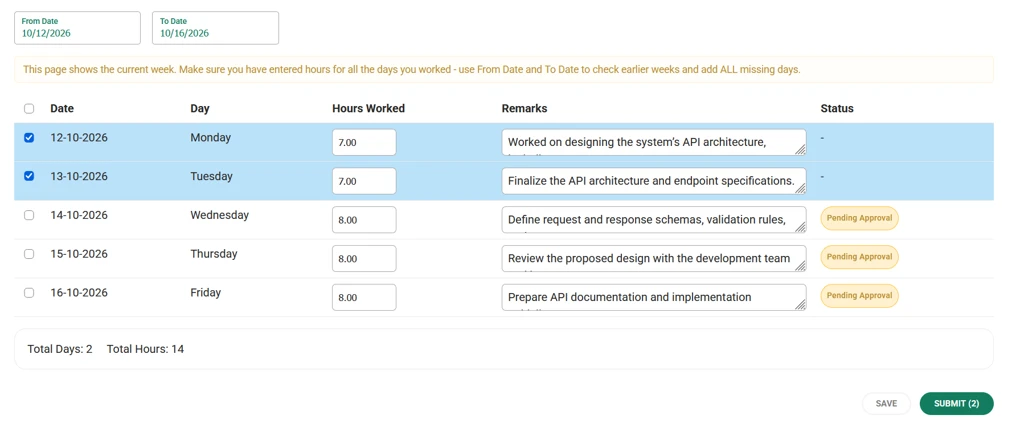
Select the record you want to modify, update the required fields, and click Save to save your changes.
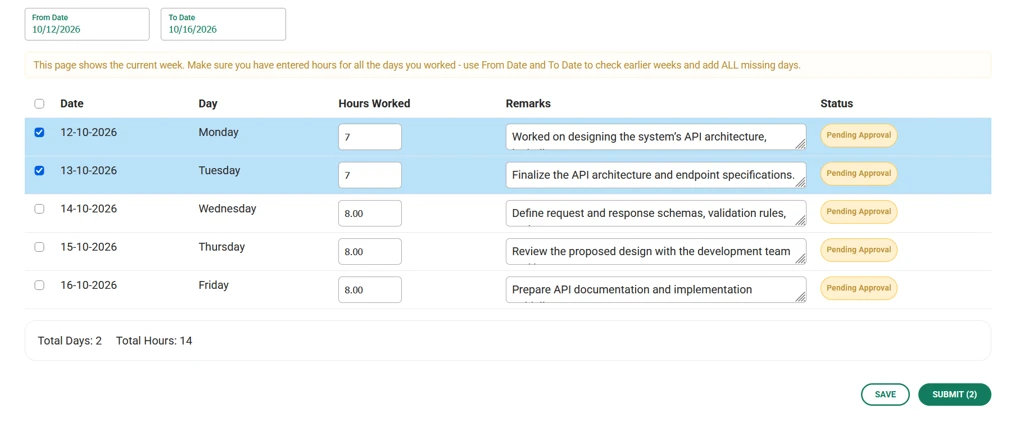
After saving your changes, the status of the modified records will revert to Draft. You must submit these records again for manager approval.
Timesheet Approvals
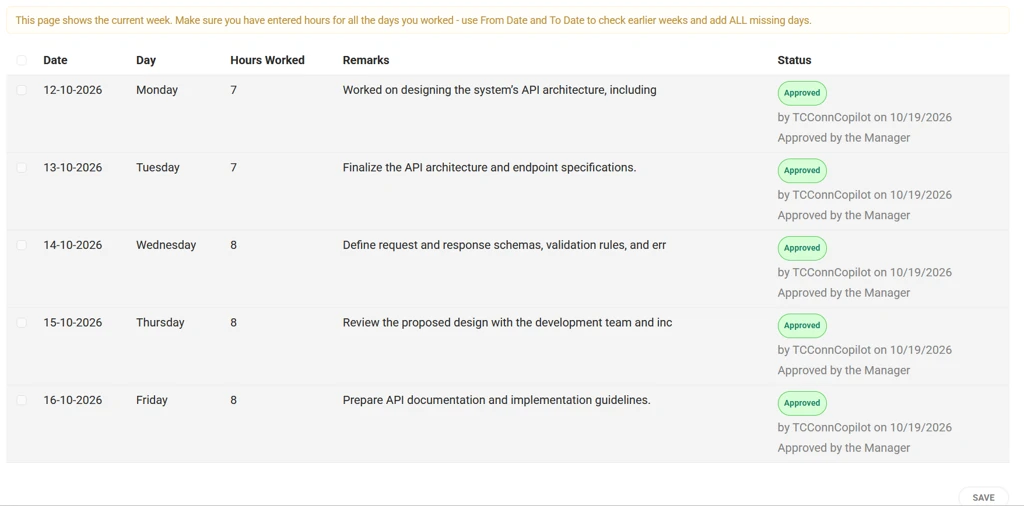
Your submitted timesheet records will be reviewed and approved by your manager. Once approved, their status will change to Approved. Please note that you will no longer be able to modify approved timesheet records.
You will receive an email notification once your manager approves your timesheets.
Reopening Timesheets
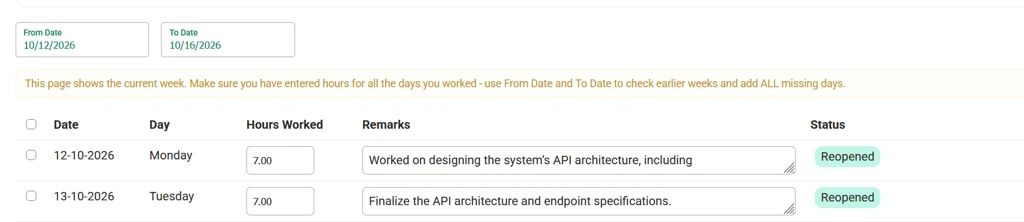
Approved timesheet can be reopened by the administrator in some cases and then you will be notified via an email. Such records will be displayed in Reopened status and you have to resubmit them after making necessary adjustments following the same steps you followed above when submitting the timesheets.
For any general issues or questions, you can reach us at support@topcoder.com